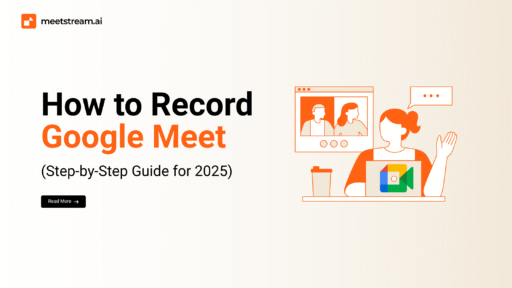

In the era of hybrid work, online learning, and remote collaboration, recording Google Meet sessions has become essential for staying organized, reviewing details, and sharing information with those who couldn’t attend.
Whether you’re hosting a training session, running a team briefing, or interviewing a candidate, having a recording allows you to revisit discussions, clarify points, and maintain accurate documentation.
But if you’ve tried to record a meeting on a standard (free) Google account, you’ve probably noticed — the option simply isn’t there. This guide covers every method to record Google Meet in 2026, from native Workspace recording to automated bot APIs.
5 Ways to Record Google Meet Compared
| Method | Cost | Requires Workspace? | Auto-Transcription | Best For |
|---|---|---|---|---|
| Google Meet Native Recording | Included in Business Standard+ | Yes | Yes (Workspace) | Enterprise/education users |
| MeetStream Bot API | Per-bot-minute | No | Yes (built-in) | Developers, SaaS products, automation |
| OBS Studio | Free | No | No | Power users, content creators |
| Loom / Screencastify | Free tier + paid | No | Limited | Quick sharing, educators |
| OS Built-in (Windows/Mac) | Free | No | No | Casual, occasional recording |
Why Google Meet Doesn’t Offer Recording for All Users
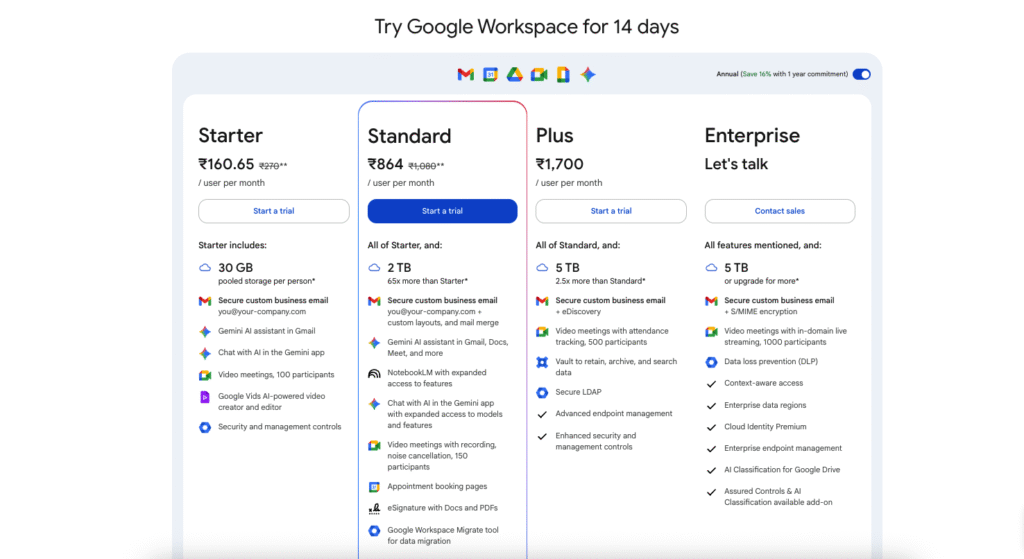
Google restricts the native recording feature to specific Google Workspace tiers:
- Business Standard
- Business Plus
- Enterprise
- Education Plus and Teaching and Learning Upgrade
For users on free personal Google accounts, or those on lower-tier Workspace subscriptions, recording simply isn’t included. The restriction exists for privacy and compliance reasons (GDPR, CCPA), data storage management, and security concerns around unauthorized distribution.
The result: most users — especially individuals, freelancers, and small businesses on free accounts — must look for alternative solutions.
The Ethical & Legal Side of Recording
Before diving into the “how,” it’s critical to address the “should.” Recording any conversation carries legal and ethical responsibilities:
- One-Party Consent: In some places (like many U.S. states), only one participant needs to consent to the recording — and that can be you.
- Two-Party or All-Party Consent: In other regions (such as California, Canada, or much of the EU), everyone in the meeting must give permission.
Failing to follow local laws can result in legal action, fines, or even criminal charges. Always inform participants before recording.
Method 1: Record Google Meet Automatically with a Bot API
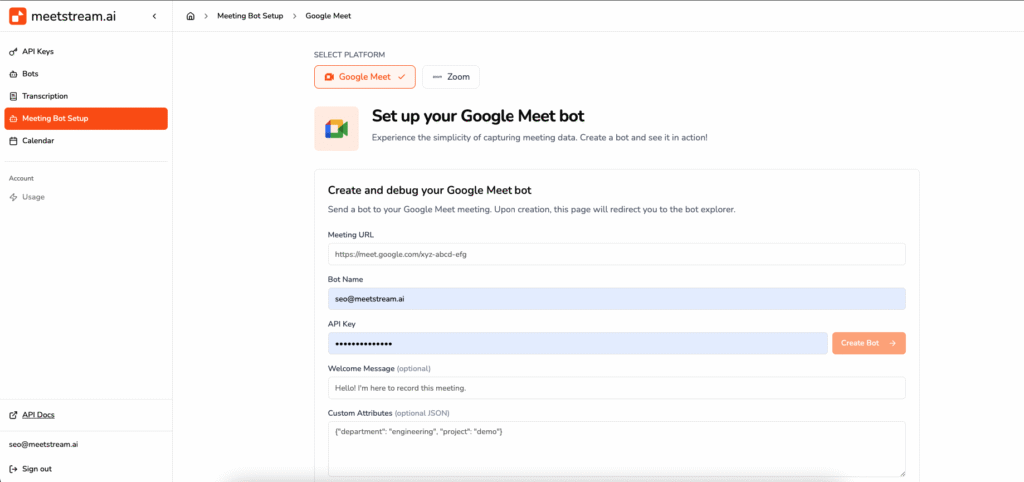
For developers building SaaS products, or teams that need automated, consistent recording at scale, the most powerful approach is using a meeting bot API like MeetStream. The bot joins your Google Meet as a participant, records audio and video, transcribes the conversation, and delivers everything via webhook.
curl -X POST https://api.meetstream.ai/v1/bots
  -H "Authorization: Bearer YOUR_API_KEY"
  -H "Content-Type: application/json"
  -d '{
    "meeting_url": "https://meet.google.com/abc-defg-hij",
    "bot_name": "Meeting Recorder",
    "features": {
      "transcription": true,
      "recording": true,
      "summary": true
    },
    "webhook_url": "https://your-app.com/webhooks/recordings"
  }'
Why use a bot API to record Google Meet?
- No Workspace required: Works with any Google account — free or paid
- Automated: Bots join and record on schedule, no manual intervention needed
- Transcription included: Get speaker-labeled transcripts automatically
- Scalable: Record hundreds of meetings simultaneously
- Multi-platform: Same API works for Zoom and Microsoft Teams too
Method 2: Use Google Meet’s Native Recording (Workspace)
If you have a qualifying Google Workspace account, native recording is the simplest option:
- Start or join a Google Meet session
- Click the Activities icon (bottom right) → Recording
- Click Start Recording — all participants will be notified
- When finished, click Stop Recording
- The recording saves automatically to the organizer’s Google Drive
Recordings include a link in the Google Calendar event and are shared with all participants.
Method 3: Screen Recording Software (OBS, Loom, Camtasia)
If your account doesn’t have native recording and you don’t need API-level automation, dedicated screen recording software works well:
OBS Studio — Best for advanced users who want free, open-source software with powerful customization. Download from obsproject.com, create a “Display Capture” source, select your microphone and system audio, and start recording before joining your Google Meet.
Loom — Best for quick recording and easy cloud sharing. Install the desktop app or Chrome extension, select “Screen + Camera” or “Screen only,” click record and choose your Meet window.
Camtasia — Best for professional training videos with editing. Start Camtasia Recorder, choose the Google Meet window or full screen, then edit in Camtasia Studio after recording.
Method 4: Built-In OS Recorders
Windows 10/11 — Xbox Game Bar: Press Win + G to open, click “Record” or press Win + Alt + R. Make sure “Record system audio” is enabled to capture voices.
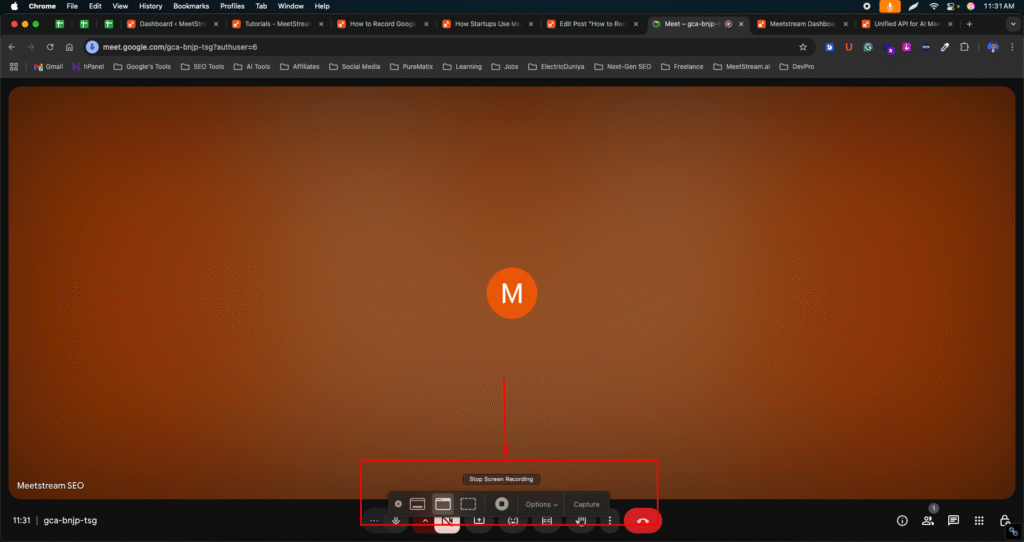
macOS — Screenshot Toolbar: Press Command + Shift + 5, choose “Record Entire Screen” or “Record Selected Portion.” Recordings save as .mov files.
Method 5: Browser-Based Recording Extensions
Screencastify — Chrome extension ideal for educators and quick recordings. Integrates with Google Drive for storage.
Screenity — Open-source, feature-rich Chrome recorder that allows annotations and highlights during recording.
When using browser extensions, be cautious about permissions and verify the tool’s privacy policy to ensure your data isn’t uploaded without consent.
Related Guides
- How to Record a Zoom Meeting: Complete Guide
- How to Record a Microsoft Teams Meeting
- Google Meet Transcription Bot: How to Build One
- What Is an AI Meeting Bot? The Complete Guide
- Zoom Recording Bot API: How to Get Recordings Programmatically
- Meeting Bot APIs and SDKs: Complete Developer Guide
Final Thoughts
Recording Google Meet without the built-in feature is not only possible but can be done in a way that’s legal, ethical, and high quality. Choose the right tool for your needs — native Workspace recording for simplicity, a bot API like MeetStream for automation and scale, or screen recording software for occasional use. Always prioritize consent, manage recordings responsibly with secure storage and controlled sharing, and stay compliant with your local privacy regulations.
Can I record Google Meet without a Google Workspace account?
Yes. While Google’s native recording feature requires a Business Standard or higher Workspace plan, you can record Google Meet using screen recording software (OBS, Loom), OS built-in recorders (Windows Game Bar, macOS Screenshot), browser extensions (Screencastify), or a meeting bot API like MeetStream that joins and records automatically.
How do I record Google Meet automatically with an API?
Use a meeting bot API like MeetStream. Send a single API call with the Google Meet URL, and a bot joins the meeting as a participant, records audio and video, generates a transcript, and delivers everything to your webhook. No manual intervention needed.
Is it legal to record a Google Meet session?
It depends on your jurisdiction. Some regions require only one-party consent (you), while others (California, EU, Canada) require all participants to agree. Always inform participants before recording and check your local laws and organizational policies.
Where are Google Meet recordings saved?
Native Workspace recordings save automatically to the meeting organizer’s Google Drive in the ‘Meet Recordings’ folder. When using a bot API like MeetStream, recordings are delivered to your specified webhook URL or can be downloaded via the API.
Can I get a transcript of my Google Meet recording?
Yes. Google Workspace provides auto-generated transcripts with native recording. Meeting bot APIs like MeetStream provide real-time, speaker-labeled transcripts as part of the recording. Third-party tools like Otter.ai can also transcribe recordings after the fact.
What’s the best way to record Google Meet for a SaaS product?
For SaaS products that need automated meeting recording at scale, a meeting bot API like MeetStream is the best approach. It provides a single API that works across Google Meet, Zoom, and Microsoft Teams, with built-in transcription, recording, and summarization — no manual setup required.