
In today’s digital-first world, virtual meetings have become integral to business operations, education, and collaboration.
Platforms like Zoom facilitate seamless communication, but developers often face challenges when integrating recording and transcription functionalities across multiple platforms.
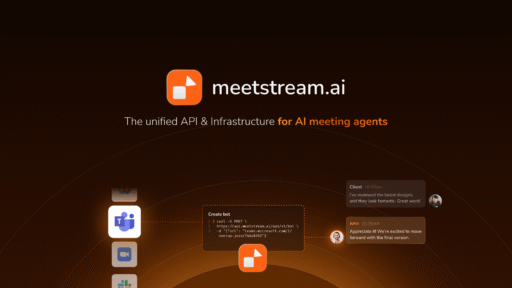
Enter MeetStream.ai, a unified API solution that simplifies these processes, enabling developers to build AI meeting agents with ease.
Understanding Transcription
Transcription refers to the process of converting spoken language into written text. In the context of virtual meetings, transcription allows for:
- Record Keeping: Maintaining accurate records of discussions.
- Accessibility: Assisting individuals with hearing impairments.
- Content Creation: Generating materials like meeting minutes or blog posts.
Transcript File Formats
Transcript files come in various formats, each serving different purposes:
- .VTT (Web Video Text Tracks): Commonly used for subtitles.
- .SRT (SubRip Subtitle): Widely supported subtitle format.
- .TXT: Plain text files for simple readability.
- .PDF: Portable document format for sharing and printing.
Understanding these formats is crucial for developers aiming to utilize or distribute transcripts effectively.
How to Record a Zoom Meeting Programmatically
Zoom offers APIs that allow developers to control meeting recordings:
- Cloud Recording: Requires a Pro, Business, or Enterprise account. Developers can start, stop, and manage recordings via the Zoom API.
- Local Recording: Initiated by the host’s Zoom client; not controllable via API.
To programmatically manage recordings:
- Authenticate: Use OAuth 2.0 to obtain access tokens.
- Start Recording: Utilize the
recording.startendpoint. - Stop Recording: Use the
recording.stopendpoint. - Retrieve Recordings: Access recordings via the
recording.getendpoint.
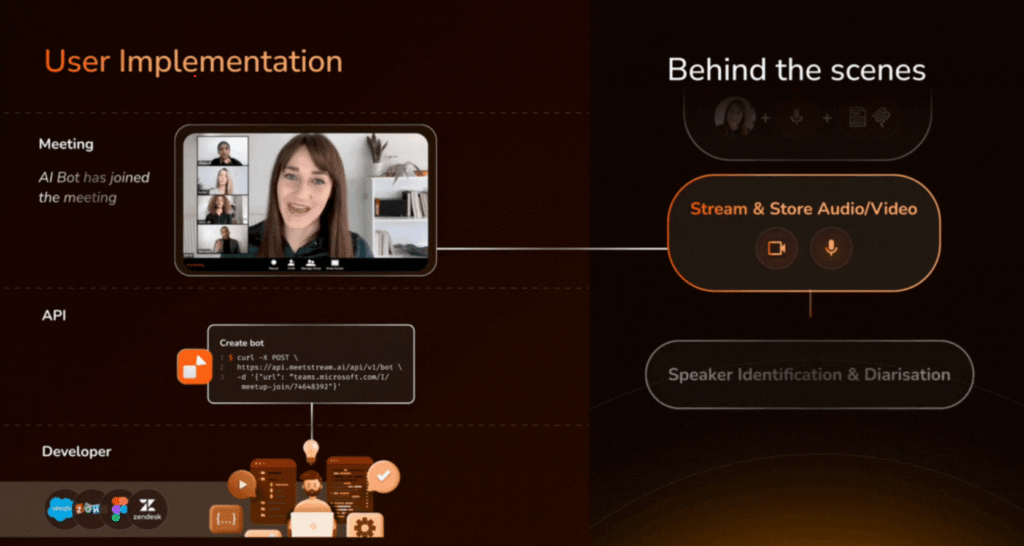
However, there’s a much simpler approach — using a unified meeting bot API that handles authentication, recording, and transcription in a single call:
curl -X POST https://api.meetstream.ai/v1/bots
  -H "Authorization: Bearer YOUR_API_KEY"
  -H "Content-Type: application/json"
  -d '{
    "meeting_url": "https://zoom.us/j/1234567890",
    "bot_name": "Recording Bot",
    "features": {
      "transcription": true,
      "recording": true,
      "summary": true
    },
    "webhook_url": "https://your-app.com/webhooks/meetings"
  }'
This single API call sends a bot that joins, records, and transcribes the Zoom meeting — no OAuth flow or Zoom API configuration needed.
Zoom Recording Methods Compared
| Method | Setup Complexity | Transcription | Cross-Platform | Best For |
|---|---|---|---|---|
| Zoom Cloud Recording | Medium (OAuth required) | Basic (Zoom’s built-in) | Zoom only | Zoom-only apps |
| Zoom Local Recording | None (manual) | No | Zoom only | Personal use |
| Bot API (MeetStream) | Low (single API call) | Yes (real-time + speaker ID) | Zoom, Meet, Teams | Developers building products |
| Screen Recording | None | No | Any platform | Quick captures |
MeetStream.ai: A Unified API for AI Meeting Agents
What Is MeetStream.ai?
MeetStream.ai is a platform that provides a single API to:
- Join Meetings: Seamlessly connect to Zoom, Google Meet, Teams, and more.
- Record Sessions: Capture audio and video content.
- Transcribe Conversations: Convert speech to text in real-time.
- Analyze Data: Extract insights, action items, and summaries.
This unified approach eliminates the need for multiple integrations, streamlining the development of AI meeting agents.
MeetStream.ai API Architecture
The architecture of MeetStream.ai is designed for scalability and ease of use:
- Unified Endpoints: One API to interact with various meeting platforms.
- Webhooks: Receive real-time updates and data.
- Token Management: Secure authentication and authorization.
- RESTful Design: Standard HTTP methods for resource manipulation.
Step-by-Step Guide: Automating Zoom Recordings and Transcripts
A clear step-by-step walkthrough on setting up automated Zoom recordings and transcripts for effortless meeting management.
Step 1 – Authenticate and Connect Zoom with MeetStream
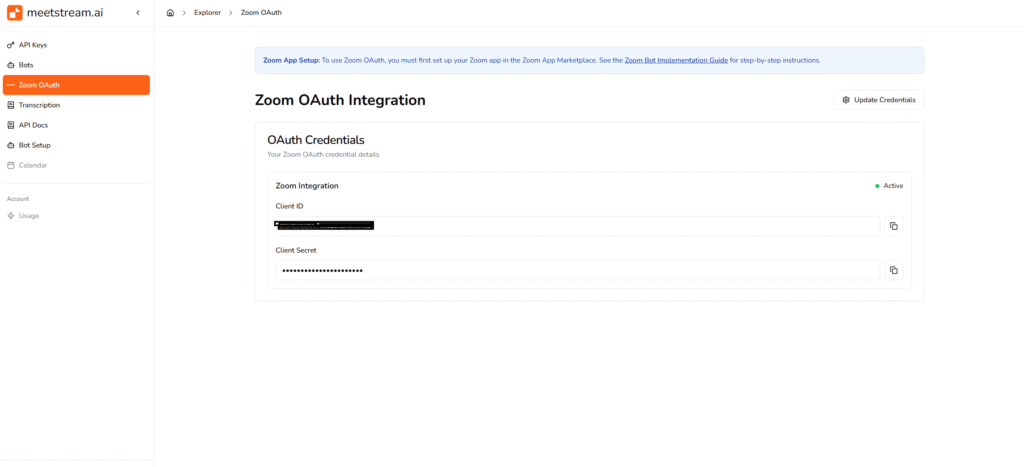
Begin by linking your Zoom account with MeetStream.ai:
- Obtain API Credentials: Register your application on Zoom’s Developer Platform.
- Set Up OAuth: Configure OAuth 2.0 for secure authentication.
- Update MeetStream.ai: Add the API Key & Secret to MeetStream.ai’s dashboard
Step 2 – Start and Stop Recordings via API
With authentication in place:
- Initiate Recording: Send a POST request to the
/bots/create_botendpoint with meeting details. - Terminate Recording: Use the
/bots/remove_botendpoint to end the session.
MeetStream.ai handles the underlying complexities, providing a simplified interface for developers.
Step 3 – Accessing and Storing Recordings
After recording:
- Retrieve Files: Access audio and video files via the
/bots/{bot_id}/get_audioendpoint. - Store Securely: Save recordings to your preferred storage solution, ensuring compliance with data protection regulations.
Step 4 – Generate Transcripts in Real-Time
MeetStream.ai offers real-time transcription capabilities:
- Live Transcription: Receive transcripts as the meeting progresses.
- Speaker Identification: Distinguish between different speakers.
- Timestamping: Mark when each statement was made.
Creating Custom AI Meeting Agents
Embedding NLP and NLU with Transcripts
Natural Language Processing (NLP) and Natural Language Understanding (NLU) can be applied to transcripts to:
- Summarize Content: Generate concise overviews of meetings.
- Extract Action Items: Identify tasks and responsibilities.
- Analyze Sentiment: Gauge the emotional tone of discussions.
Developers can build agents that:
- Take Notes: Automatically document key points.
- Schedule Follow-Ups: Set reminders and meetings based on discussions.
- Update CRM Systems: Input relevant information into customer databases
Benefits of Using MeetStream.ai API
Time Savings and Automation
Automating recording and transcription processes reduces manual effort, allowing teams to focus on core tasks.
Cost Reduction in Development and Maintenance
A unified API minimizes the need for multiple integrations, lowering development and maintenance costs.
Enhanced User Experience
Providing accurate, real-time transcriptions and recordings improves accessibility and user satisfaction.
Common Challenges & How MeetStream Solves Them
Multi-platform Complexity
MeetStream.ai’s unified API abstracts the differences between platforms, offering a consistent interface.
Data Consistency and Privacy
The platform ensures secure data handling, maintaining consistency across recordings and transcripts.
Transcript Accuracy & Model Optimization
Advanced algorithms enhance transcription accuracy, with continuous improvements through machine learning.
Conclusion
Integrating recording and transcription functionalities into Zoom meetings is essential for modern applications. MeetStream.ai simplifies this process with its unified API, enabling developers to build powerful AI meeting agents efficiently.
By leveraging this platform, you can enhance user experiences, streamline workflows, and stay ahead in the evolving digital landscape.
Related Guides
- Meeting Bot APIs and SDKs: Complete Developer Guide [2026]
- How to Record Google Meet: Complete Guide [2026]
- How to Record Microsoft Teams Meeting
- What Is a Meeting Bot Developer Platform? [2026]
- Real-Time Audio Processing for Meeting Bots [2026]
- Top 7 Use Cases for AI Meeting Bots [2026]
Can I customize the transcript format with MeetStream.ai?
Yes, MeetStream.ai provides raw transcripts in JSON format and allows customization of transcript output to suit various use cases including VTT, SRT, and plain text formats.
How secure are Zoom recordings and transcripts via MeetStream?
MeetStream.ai ensures data security through encrypted storage and compliance with industry standards including SOC 2, GDPR, and CCPA, safeguarding your recordings and transcripts.
Can I record and transcribe Google Meet and Microsoft Teams too?
Absolutely. MeetStream.ai supports multiple platforms through a single unified API — including Zoom, Google Meet, Microsoft Teams, and more. The same API call works across all platforms.
Does the API support speaker labeling and real-time analysis?
Yes, the API includes speaker diarization for identifying who said what, real-time transcription for live captions, and webhook delivery for streaming insights as the meeting progresses.
How do I automate Zoom recording without Zoom’s OAuth flow?
Using MeetStream’s bot API, you can send a bot to any Zoom meeting with a single API call — no Zoom OAuth setup required. Just provide the meeting URL and your MeetStream API key, and the bot handles joining, recording, and transcription automatically.
What’s the difference between Zoom Cloud Recording and a bot API?
Zoom Cloud Recording requires a paid Zoom plan, works only on Zoom, and offers basic transcription. A bot API like MeetStream works across Zoom, Google Meet, and Teams with a single integration, provides real-time transcription with speaker identification, and doesn’t require host-level permissions.