
Google Meet serves over 3 billion minutes of video calls every day, making it one of the most widely used collaboration platforms in enterprise and education. For organizations that depend on it for critical discussions, every meeting that goes undocumented represents institutional knowledge that quietly disappears.
Most meeting notes tools require manual effort, and built-in captions do not produce exportable transcripts with speaker attribution. Teams that want accurate, searchable records of their Google Meet calls either pay for costly third-party apps or struggle to build something themselves, only to find that maintaining a browser-based bot against a frequently updated UI is a full-time job.
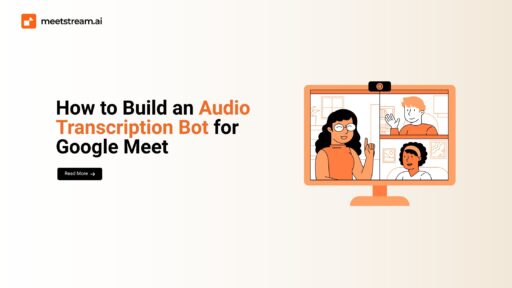
A Google Meet transcription bot is an automated participant that joins meetings programmatically, captures the audio stream, and produces a transcript with speaker labels. Building one from scratch requires browser automation through Playwright, audio capture through FFmpeg, and a transcription API like AssemblyAI. Alternatively, a managed meeting bot API handles all of this with a single call.
In this article, we’ll explore both approaches side by side, including a complete Python implementation for the DIY path and a one-call integration for teams that want production-ready results without the infrastructure overhead. Let’s get started!
Two Approaches: DIY Bot vs Meeting Bot API
| Dimension | DIY (Playwright + AssemblyAI) | Meeting Bot API (MeetStream) |
|---|---|---|
| Setup Time | Days to weeks | Minutes (single API call) |
| Infrastructure | Your servers, browser, FFmpeg | Fully managed |
| Maintenance | High (Google Meet UI changes break bots) | Zero (API provider handles updates) |
| Transcription | Post-meeting (upload to AssemblyAI) | Real-time with speaker diarization |
| Multi-Platform | Google Meet only | Zoom + Meet + Teams |
| Best For | Learning, full customization | Production apps, SaaS products |
Option 1: The Quick Way — MeetStream API
If you want a Google Meet transcription bot without managing browser automation and audio capture infrastructure, MeetStream’s API does it in one call:
curl -X POST https://api.meetstream.ai/v1/bots
  -H "Authorization: Bearer YOUR_API_KEY"
  -H "Content-Type: application/json"
  -d '{
    "meeting_url": "https://meet.google.com/abc-defg-hij",
    "config": {
      "transcription": true,
      "audio_stream": true
    }
}'This launches a bot that joins the Google Meet, captures per-participant audio with sub-200ms latency, transcribes in real time with speaker diarization, and delivers transcripts via WebSocket or webhook. No Playwright, no FFmpeg, no Google OAuth credentials to manage. Get a free API key →
Option 2: Build It Yourself — Python + Playwright + AssemblyAI
If you want full control and want to learn how Google Meet bots work under the hood, here’s the DIY approach.
Understanding Google Meet Bot Architecture
Unlike Zoom’s dedicated bot SDK, Google Meet requires a different approach. Your bot will use Playwright to control a headless browser, join meetings through the web interface, capture audio streams via FFmpeg, and send them to AssemblyAI for transcription with speaker identification.
Prerequisites and Setup
Install the required dependencies:
pip install playwright assemblyai python-dotenv asyncio
playwright install chromiumYou’ll need:
- Google Workspace Account — For creating and joining meetings
- AssemblyAI API Key — Get from assemblyai.com
- Google OAuth Credentials — For bot authentication
# .env file
GOOGLE_EMAIL=bot@yourdomain.com
GOOGLE_PASSWORD=your_bot_password
ASSEMBLYAI_API_KEY=your_api_keyStep 1: Automate Browser Login
from playwright.async_api import async_playwright
import asyncio, os
from dotenv import load_dotenv

load_dotenv()

class GoogleMeetBot:
    def __init__(self):
        self.email = os.getenv("GOOGLE_EMAIL")
        self.password = os.getenv("GOOGLE_PASSWORD")
        self.browser = None
        self.page = None
        self.context = None

    async def initialize_browser(self):
        playwright = await async_playwright().start()
        self.browser = await playwright.chromium.launch(
            headless=False,
            args=[
                '--use-fake-ui-for-media-stream',
                '--use-fake-device-for-media-stream',
                '--no-sandbox',
                '--disable-setuid-sandbox'
            ]
        )
        self.context = await self.browser.new_context(
            permissions=['microphone', 'camera'],
            viewport={'width': 1280, 'height': 720}
        )
        self.page = await self.context.new_page()

    async def login_google(self):
        await self.page.goto('https://accounts.google.com')
        await self.page.fill('input[type="email"]', self.email)
        await self.page.click('#identifierNext')
        await self.page.wait_for_timeout(2000)
        await self.page.fill('input[type="password"]', self.password)
        await self.page.click('#passwordNext')
        await self.page.wait_for_timeout(3000)

    async def join_meeting(self, meeting_url):
        await self.page.goto(meeting_url)
        await self.page.wait_for_timeout(3000)
        try:
            await self.page.click('button[aria-label*="camera"]')
            await self.page.click('button[aria-label*="microphone"]')
        except:
            pass
        await self.page.click('button:has-text("Ask to join")')
await self.page.wait_for_timeout(5000)Step 2: Capture Audio Streams
import subprocess

class AudioStreamCapture:
    def __init__(self, output_file="meet_audio.wav"):
        self.output_file = output_file
        self.is_recording = False
        self.process = None

    def start_capture(self):
        self.is_recording = True
        ffmpeg_cmd = [
            'ffmpeg', '-f', 'pulse', '-i', 'default',
            '-acodec', 'pcm_s16le', '-ar', '16000',
            '-ac', '1', self.output_file, '-y'
        ]
        self.process = subprocess.Popen(
            ffmpeg_cmd, stdout=subprocess.PIPE, stderr=subprocess.PIPE
        )

    def stop_capture(self):
        if self.process:
            self.process.terminate()
            self.process.wait()
            self.is_recording = False

    def get_audio_file(self):
return self.output_fileStep 3: Implement Transcription with Speaker Diarization
import assemblyai as aai
from datetime import datetime

class MeetTranscriber:
    def __init__(self):
        aai.settings.api_key = os.getenv("ASSEMBLYAI_API_KEY")

    def transcribe_file(self, audio_file):
        config = aai.TranscriptionConfig(
            speaker_labels=True,
            speakers_expected=5,
            language_code="en_us"
        )
        transcriber = aai.Transcriber()
        transcript = transcriber.transcribe(audio_file, config=config)
        if transcript.status == aai.TranscriptStatus.error:
            raise Exception(f"Transcription error: {transcript.error}")
        return transcript

    def format_transcript(self, transcript):
        output = [f"Google Meet Transcriptn{'='*60}nGenerated: {datetime.now()}n"]
        for u in transcript.utterances:
            ts = self._format_timestamp(u.start)
            output.append(f"[{ts}] Speaker {u.speaker}:n{u.text}n")
        return "n".join(output)

    def _format_timestamp(self, ms):
        s = ms // 1000
        return f"{s//3600:02d}:{(s%3600)//60:02d}:{s%60:02d}"

    def extract_action_items(self, transcript):
        keywords = ['todo', 'action item', 'follow up', 'will do', 'need to']
        return [
            {'speaker': f"Speaker {u.speaker}", 'text': u.text,
             'timestamp': self._format_timestamp(u.start)}
            for u in transcript.utterances
            if any(k in u.text.lower() for k in keywords)
]Step 4: Build the Complete Bot System
import asyncio, signal

class GoogleMeetTranscriptionBot:
    def __init__(self):
        self.meet_bot = GoogleMeetBot()
        self.audio_capture = AudioStreamCapture()
        self.transcriber = MeetTranscriber()
        self.is_running = False

    async def start(self, meeting_url):
        await self.meet_bot.initialize_browser()
        await self.meet_bot.login_google()
        await self.meet_bot.join_meeting(meeting_url)
        self.audio_capture.start_capture()
        self.is_running = True

    async def stop(self):
        self.is_running = False
        self.audio_capture.stop_capture()
        audio_file = self.audio_capture.get_audio_file()
        transcript = self.transcriber.transcribe_file(audio_file)
        ts = datetime.now().strftime('%Y%m%d_%H%M%S')
        self.transcriber.save_transcript(transcript, f"meet_transcript_{ts}.txt")
        if self.meet_bot.browser:
            await self.meet_bot.browser.close()

    async def run(self, meeting_url, duration=None):
        await self.start(meeting_url)
        try:
            if duration:
                await asyncio.sleep(duration)
            else:
                while self.is_running:
                    await asyncio.sleep(1)
        except KeyboardInterrupt:
            pass
        finally:
            await self.stop()

async def main():
    bot = GoogleMeetTranscriptionBot()
    meeting_url = "https://meet.google.com/abc-defg-hij"
    signal.signal(signal.SIGINT, lambda s, f: asyncio.create_task(bot.stop()))
    await bot.run(meeting_url, duration=3600)

if __name__ == "__main__":
asyncio.run(main())Step 5: Add Advanced Features
Enhance your bot with sentiment analysis and summary generation using AssemblyAI’s built-in features:
class AdvancedTranscriber(MeetTranscriber):
    def generate_summary(self, transcript):
        config = aai.TranscriptionConfig(
            summarization=True,
            summary_model=aai.SummarizationModel.informative,
            summary_type=aai.SummarizationType.bullets
        )
        return transcript.summary if hasattr(transcript, 'summary') else None

    def analyze_sentiment(self, transcript):
        return [
            {'timestamp': self._format_timestamp(u.start),
             'speaker': f"Speaker {u.speaker}",
             'sentiment': u.sentiment, 'text': u.text}
            for u in transcript.utterances
            if hasattr(u, 'sentiment')
]Deployment and Production Tips
Use a dedicated Google Workspace account for your bot. Deploy on a cloud VM with at minimum 2GB RAM and 2 CPU cores. Implement webhook listeners to automatically join scheduled meetings. Store transcripts in cloud storage (GCS or S3), add monitoring with Sentry, and implement retry logic for network failures.
For security, encrypt stored transcripts and use environment variables for all credentials. Consider role-based access control if multiple team members need transcript access.
DIY vs API: Which Should You Choose?
Building a custom Google Meet transcription bot gives you full control over your meeting documentation pipeline and data privacy. However, managing browser automation, audio capture, and API integrations requires ongoing maintenance — especially when Google Meet updates its UI.
For production applications, MeetStream’s API provides enterprise-grade Google Meet transcription with speaker diarization, sub-200ms latency streaming, and unified support for Zoom and Microsoft Teams — without maintaining bot infrastructure. Get started free →
Related Guides
- How to Record Google Meet with a Bot
- Building a Meeting Bot with Python: Step-by-Step
- Meeting Bot API: Complete Guide for Developers
- Zoom Recording Bot API Guide
- Meeting Transcription API Comparison
- Extracting Action Items from Meetings with NLP
How to build a Google Meet transcription bot?
Building a Google Meet transcription bot involves browser automation (Playwright) to join meetings, FFmpeg to capture the system audio stream, and a transcription API like AssemblyAI for speaker-labeled output. The Python implementation in this guide covers all three layers. For production use, a managed meeting bot API like MeetStream handles joining, recording, and transcription in a single API call.
Does Google Meet have a built-in transcription bot?
Google Meet includes a built-in caption feature in Google Workspace plans, but it does not produce downloadable transcripts with speaker labels. For exportable transcripts with diarization, you need either a third-party Google Meet transcription tool or a meeting bot API that joins as a participant and captures audio programmatically.
What API is needed to build a Google Meet bot?
Google Meet does not provide a dedicated bot SDK. Building a DIY bot requires Playwright or Selenium for browser automation, FFmpeg for audio capture, and the Google OAuth flow for authentication. Alternatively, a meeting bot API like MeetStream abstracts all of this behind a REST endpoint and handles authentication, joining, and transcription for you.
Can I automate Google Meet transcription?
Yes. You can automate Google Meet transcription by building a bot that joins meetings via browser automation and processes the audio through a transcription service. Alternatively, you can trigger transcription automatically using a meeting bot API webhook, which fires when a meeting starts and dispatches a bot to join, record, and transcribe without any manual intervention.